FretPacer Guide
How to Open Guitar Pro Files on Mac
FretPacer opens .gp, .gpx, .gp5, .gp4, and .gp3 files. Import a score from your Mac, choose a part, then slow down or repeat the passage you want to practice.
1. Import the score
Open Library in FretPacer, choose Import → Import Files, and select your Guitar Pro file. Download cloud files to your Mac first. Select the score in the library and choose Create Practice.
Want a score to follow along with? Download First Light (.gp), or open Getting Started in the app and choose Try Demo Practice.
2. Choose what to read and hear
Open Score Options above the score. Use Part to select one instrument or All parts. The selection applies to both the notation and playback. Use Notation to switch between the available views, such as TAB and standard notation.
3. Play, slow down, or repeat a passage
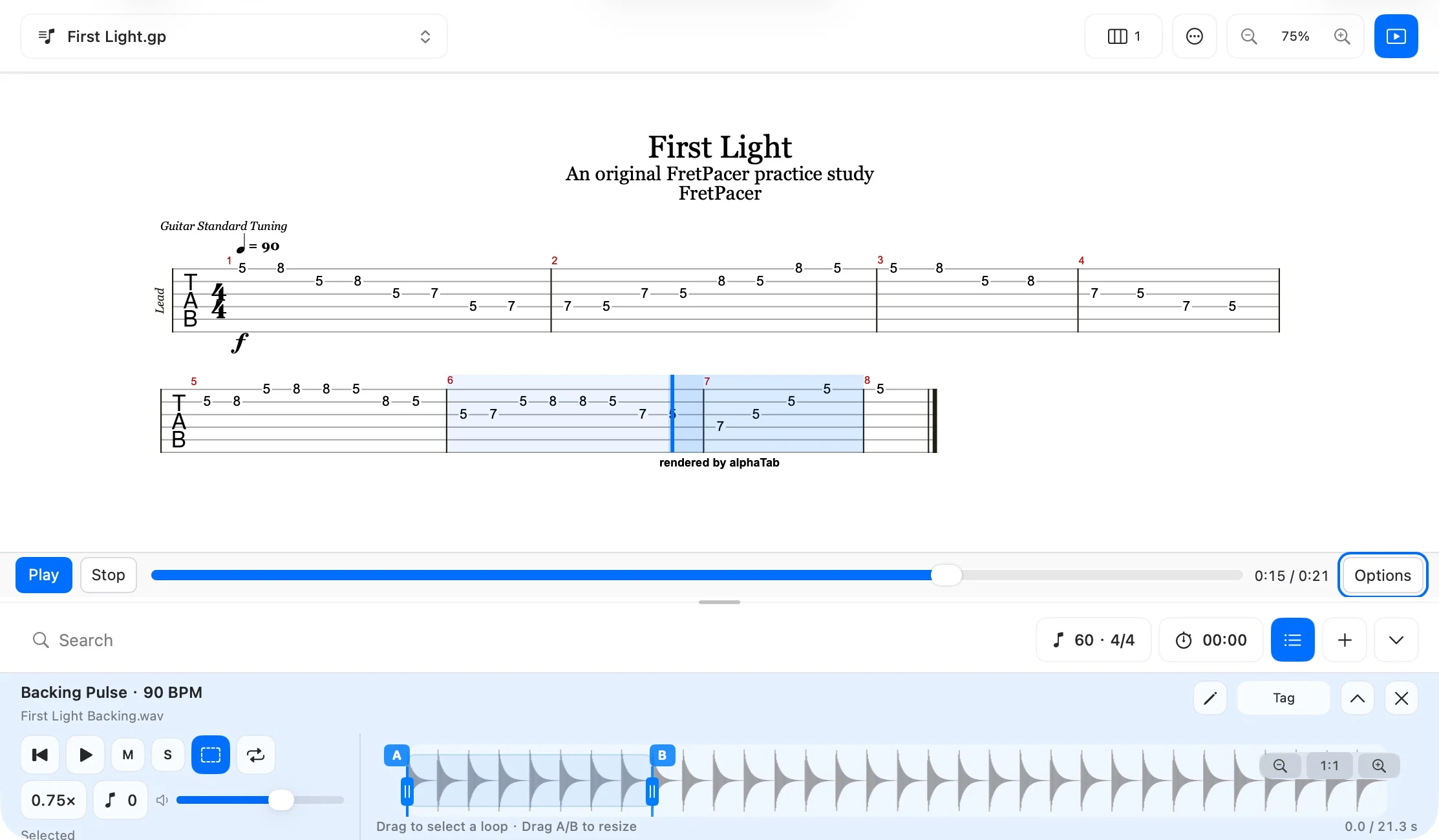
Select Show GP Player above the score and press Play. Click a note to jump to it, or drag across notes to select a passage. Use the speed control to slow the score down and turn on Repeat to practice the selection. For a wider score view, use the page layout control above the score.
Guitar Pro playback and imported reference audio use separate controls. Starting either one pauses the other. You can still read the score while playing a local backing track.
If a file does not open
Password-protected scores and embedded GP8 reference audio are unsupported. If a file was moved or its access expired, choose Locate Originaland select it again. Try the included First Light study to check whether playback works with a known score.
More practice guides
- How to Slow Down and Loop a Guitar Solo on Mac
Keep the original pitch and use A/B points to repeat a difficult phrase.
- How to Practice with PDF Sheet Music and Backing Tracks on Mac
Read your score, play a local backing track, and fit up to three pages in one window.