FretPacer Guide
How to Slow Down and Loop a Guitar Solo on Mac
Slow down a local guitar recording without changing its pitch, then set an A/B loop so you can work on one phrase at a time.
1. Open a local recording
In Library, choose Import → Import Files and select an MP3, M4A, WAV, or FLAC file. Select the audio in the library and choose Create Practice. To add it to a practice you already have, use the Import Audio button in the audio area.
To follow along, download the First Light backing track. It is an original eight-bar recording at 90 BPM.
2. Slow down without retuning
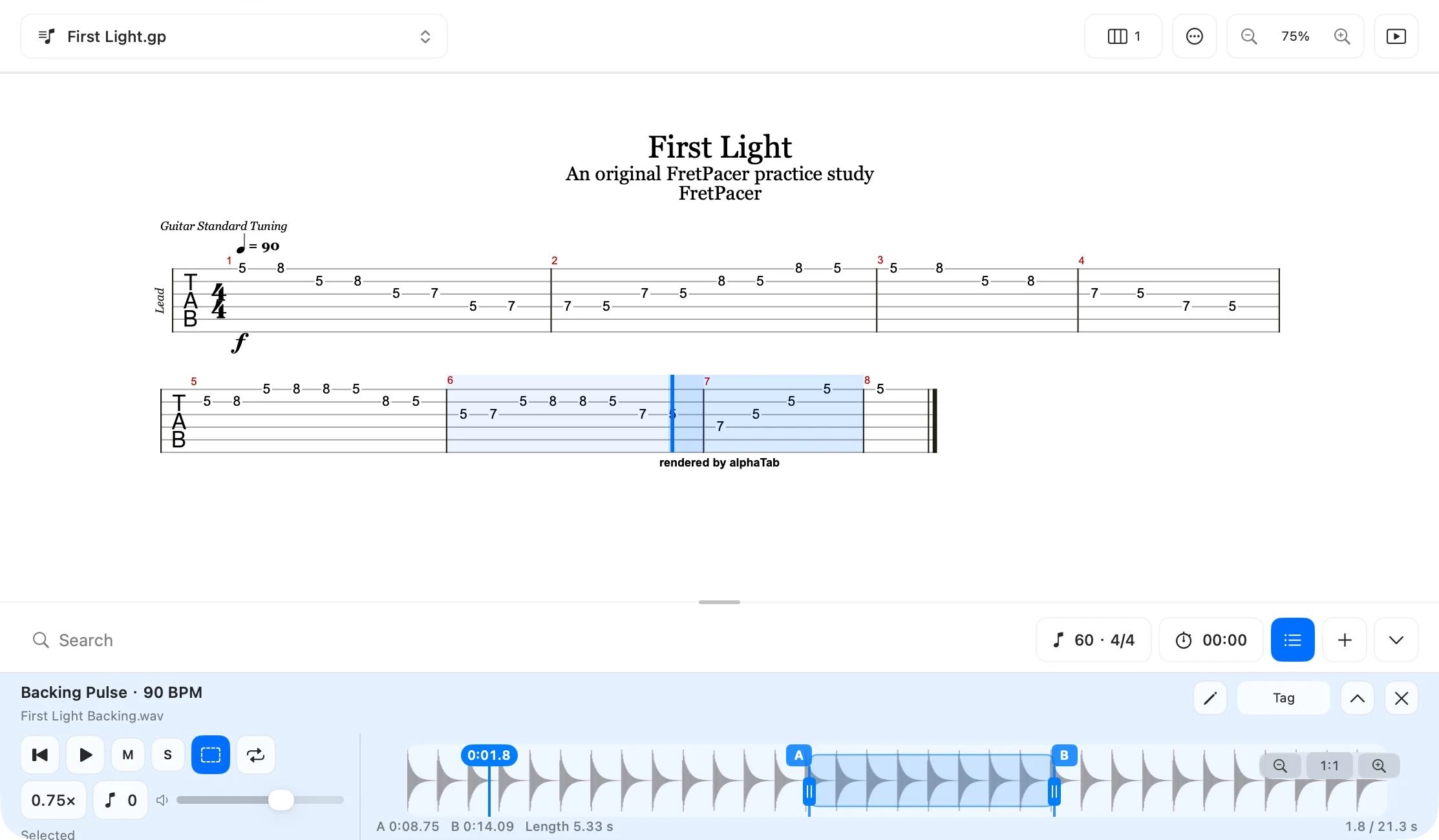
Select the track to open its waveform. Click the speed control, which starts at 1.00× in a new practice with default settings, and choose 0.75×. Leave the pitch control at 0 to keep the original pitch. At 75% speed, the First Light pulse plays at about 68 BPM.
3. Set and adjust the A/B loop
Turn on the dashed rectangle button, Select and Loop a Region on This Track, then drag across an unselected part of the waveform. Start with the first two bars of First Light, from 0:00.00 to about 0:05.33 on the source waveform. Drag the A or B handle to change the start or end, and check the times and length beneath the waveform.
With the track selected and focus outside a text field, press A and B at the playhead to set the endpoints. Press L to toggle looping.
4. Repeat and come back later
Press the track’s Play button. Once the phrase feels comfortable, raise the speed a little and play it again. FretPacer saves your loop, speed, and playback position with the practice. Use Continue Practice on Home to return to it.
More practice guides
- How to Open Guitar Pro Files on Mac
Import a tab, choose a part, and repeat the passage you want to learn.
- How to Practice with PDF Sheet Music and Backing Tracks on Mac
Read your score, play a local backing track, and fit up to three pages in one window.