FretPacer Guide
How to Practice with PDF Sheet Music and Backing Tracks on Mac
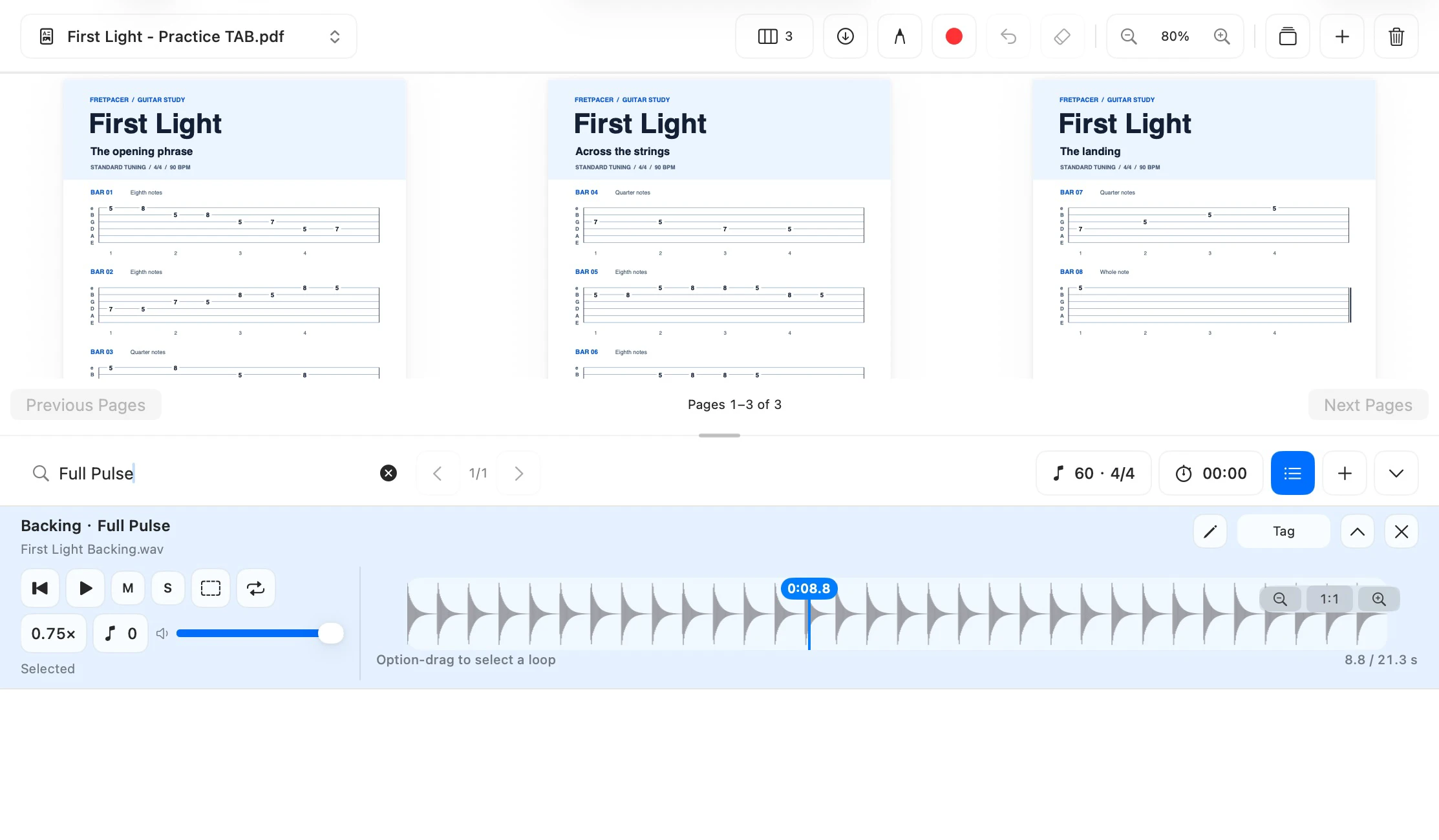
Keep a PDF score above your backing track in the same Mac window. Play the audio while you read, or spread a longer score across two or three pages.
1. Bring the score and backing track together
Try the original First Light PDF tablature and its matching 90 BPM backing track, or use your own local files.
Open Library, choose Import → Import Files, and select both files. Tick the checkboxes next to the PDF and backing track and choose Create Practice to open them together.
2. Fit the score to your window
Use Page Layout above the score. Choose Single Pageto keep one page centered, 2 Pages or 3 Pages to read across a wider window, or Auto Pages to let FretPacer choose based on the available width. Use the zoom controls if you need to read smaller notes.
3. Play along and find the right version
Press Play on the backing track in the audio area. The PDF stays visible as you play along. The sound comes from your audio file, so follow the notes on the page as you listen. Use the track’s speed control or set an A/B loop for a section.
If a practice has several takes, click the pencil next to a track and give it an alias such as Backing · Full Pulse. The audio search matches aliases and original filenames, so you can find the right take without renaming the source file.
4. Resume the same practice
Pause the audio and return to Home. Continue Practice reopens your practice with its saved playback position, speed, and loops. If you move the original PDF or audio later, use Locate Original to reconnect it.
More practice guides
- How to Open Guitar Pro Files on Mac
Import a tab, choose a part, and repeat the passage you want to learn.
- How to Slow Down and Loop a Guitar Solo on Mac
Keep the original pitch and use A/B points to repeat a difficult phrase.